Home > Google Cast Tips > How to cast Chromebook to Mac
How to cast Chromebook to Mac
X-Mirage allows you to mirror Chromebook to another Mac wirelessly. It supports both tab casting and desktop casting which is built into all Chromebooks and all desktop platforms with Google Chrome browser. X-Mirage is one of the most popular screen mirroring apps, and it is enjoyed by millions of people, especially among teaches, students and business presenters.
To mirror your Chromebook to Mac, you need to run the latest X-Mirage on your Mac, then connect Chromebook and Mac to the same WiFi network. On your Chromebook, you can choose to cast the screen via Chrome or Desktop. The detailed instructions to mirror from a Chromebook are below:
Cast from Chrome
Step 1 Open Chrome on your Chromebook.
Step 2 Click the Settings button at the top right of the window. Click Cast… in the drop-down mean. You will see X-Mirage - enabled Mac name, select the computer that you want to mirror your Chromebook display to. 
Step 3 Click Sources to choose whether you’d like to mirror the current tab in Chrome (Cast tab) or the whole screen of the Chromebook (Cast desktop).
Cast from desktop
Step 1 From the Chromebook home screen, click the system clock located in the bottom right corner.
Step 2 Click Cast on the pop-up menu.
Step 3 A list of X-Mirage - enabled Mac name will be displayed. Click the Mac that you choose.
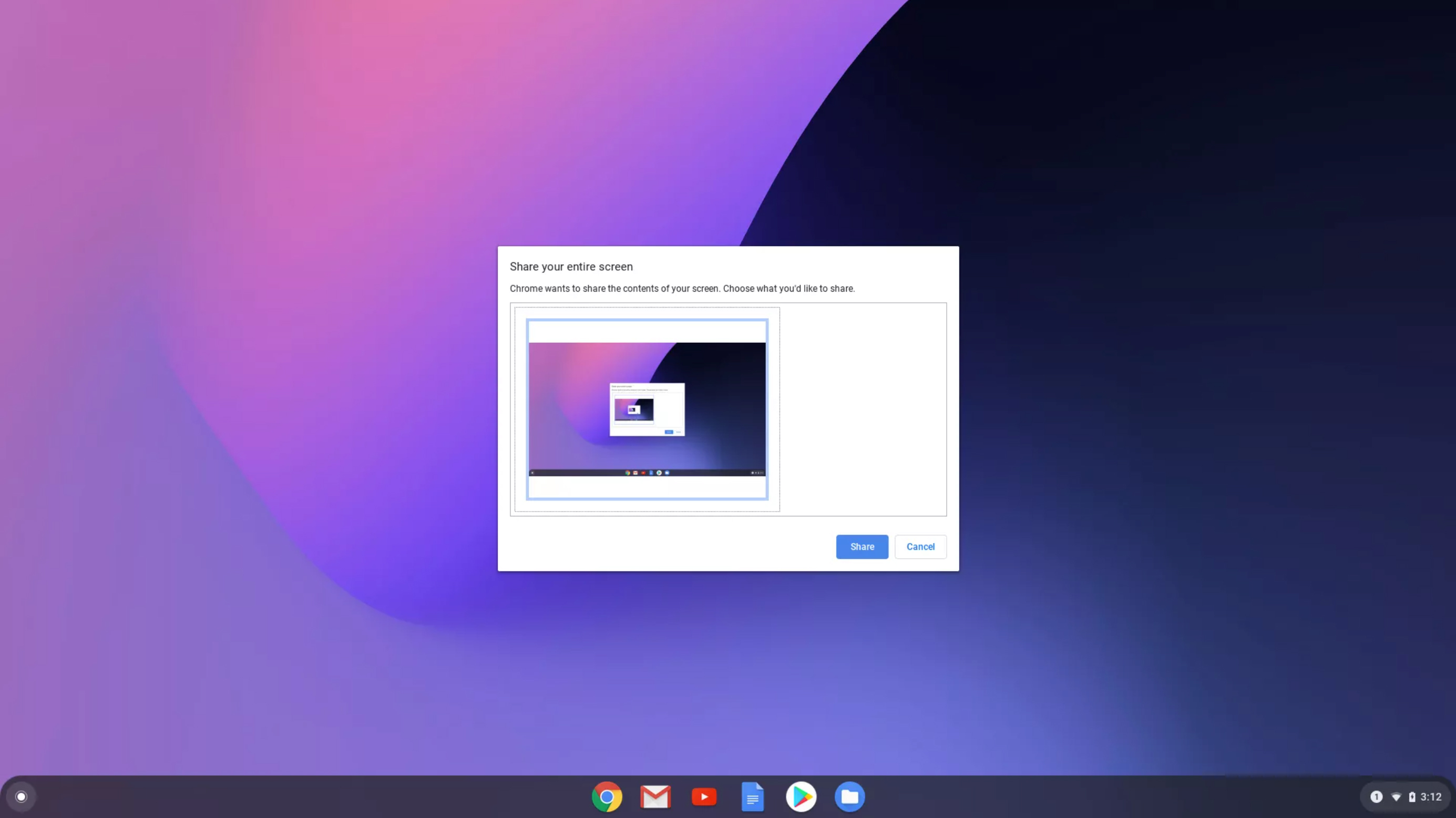
Step 4 In the pop-up window, click your desktop screen, then click Share.